

Tag: CRM

  • Replacing Disconnected SaaS with a Connected WordPress System: A Migration Checklist

    Replacing Disconnected SaaS with a Connected WordPress System: A Migration Checklist

    Hi—I’m Andrew North. If you grew up tinkering with BBSes like I did, you understand the satisfaction of making systems talk to each other instead of living in silos. This article gives a practical checklist and phased plan to replace SaaS subscriptions with a connected WordPress system so your forms, CRM pieces, and ticketing behave like a single tool without losing data or disrupting users.

    Why consolidate SaaS into WordPress (brief)

    Many organizations end up paying for multiple point tools: a hosted form platform, a ticketing SaaS, a light CRM, and an invoicing tool. Consolidating these into WordPress—using modular plugins, custom integrations, or a framework like Northpoint Core—can reduce subscription overhead, centralize data ownership, and put workflows where your site admins already work. The goal on migration day is continuity: no broken forms, no lost tickets, and minimal staff retraining.

    High-level phased approach

    • Discovery & prioritization: inventory tools and decide what to migrate first.
    • Export & map data: prepare clean exports and field mappings.
    • Staging build & integrations: implement features inside a staging WordPress site.
    • Parallel run & QA: run old SaaS and new WordPress system in parallel for a defined period.
    • Cutover & monitoring: switch forms and endpoints, monitor for issues, and roll back if needed.

    Pre-migration checklist (Discovery & priorities)

    • Inventory every SaaS, login, and the data it holds. Note public-facing endpoints (forms, APIs) and scheduled jobs (reports, notifications).
    • Rank by user impact: public forms and service requests first, internal-only tools later.
    • Identify integrations and touchpoints: which tools send emails, push SMS, create invoices, or update calendars?
    • Decide scope: use existing WordPress with added modules (recommended) or build separate subsystems.

    Data export and mapping tips

    Export everything in CSV or JSON. Before importing:

    • Normalize field names and remove duplicates. For example, merge “phone” and “mobile” into a single contact field.
    • Keep an immutable exported snapshot in a secure location—don’t overwrite original exports during testing.
    • Map statuses and taxonomy: old ticket states (open, pending, closed) must have matching statuses in WordPress or a migration script will misplace items.
    • Test imports with a small subset first. Validate that dates, attachments, and relational links (ticket→customer) import correctly.

    Staging, integrations, and testing

    Never migrate directly on production. Use a staging server that mirrors hosting, PHP versions, and email paths.

    • Install your service-center or CRM modules on staging (Northpoint Service Center patterns are useful here).
    • Replicate authentication and permissions: staff roles often cause migration issues when people can’t see records they need.
    • Run integration tests for every outbound touchpoint: emails, SMS, third-party APIs, and calendar feeds. Mock external services where possible.
    • Test file attachments and uploads—these often fail when paths or file permissions differ between environments.

    Notification and email considerations

    Notifications are where users notice changes quickly.

    • Verify sender addresses and DKIM/SPF on staging so deliverability issues surface early.
    • Preserve templates and tokens from your SaaS notifications. If your WordPress system uses different tokens, rebuild templates to match existing language to reduce user confusion.
    • Plan throttling and batching of outbound messages during bulk imports to avoid rate limits or being flagged as spam.
    • Include clear internal escalation paths in notifications—who gets a high-priority ticket alert?

    Parallel run and cutover strategy

    Run both systems side-by-side for a short, defined period—this gives staff and residents a safety net.

    • Point new form submissions to the WordPress staging endpoint while leaving the live SaaS active. Compare counts, headers, and timing.
    • Once confident, schedule a low-traffic cutover window. Update DNS, webhooks, or embedded form endpoints all at once if possible.
    • Keep a rollback plan: know what to change to point endpoints back to the old SaaS within a short window.

    Post-migration validation and monitoring

    • Monitor logs for unhandled errors and failed background jobs. Check the first 100 incoming submissions manually.
    • Ask staff to verify one representative workflow for each major function: service request intake, ticket assignment, CRM contact update, and invoice creation.
    • Keep parallel exports for at least one reporting cycle to compare historical numbers.

    Practical tools & WordPress building blocks

    For organizations that want to consolidate forms and service requests into WordPress, modular solutions and custom plugins are often the best fit. In the systems we build, a centralized dashboard and modular framework—like Northpoint Core—helps keep permissions, staff directories, and workflows consistent. For municipal forms and permits, Northpoint Civic Forms patterns can replicate public-facing applications while keeping records inside the site. For notifications, a dedicated notification module such as Northpoint Notify helps manage templates and delivery channels.

    When to consider custom development

    Choose custom WordPress software when your workflows are unique, data ownership matters, or you need deeper integration with your website. If you only need simple form collection and a handful of automations, an off-the-shelf plugin may suffice. For mid-size organizations and municipalities that handle requests, permits, and reporting, a custom approach often reduces long-term maintenance and subscription costs.

    Quick roll-call checklist (printer-friendly)

    • Inventory tools and prioritize by impact.
    • Export clean data, secure backups, and map fields.
    • Build everything on staging and test integrations, email, and attachments.
    • Run systems in parallel; schedule a low-traffic cutover.
    • Monitor closely after cutover; keep rollback steps ready.

    A small historical note: when I first started building sites in the pre-2000s era, most data was siloed between dial-up bulletin boards and early web apps. The same problems persist—now we just have better tools to fix them. A website should do more than stay online; it should work for your organization 24 hours a day. If you’d like help evaluating the costs and risks of a migration or seeing whether an existing Northpoint product fits your needs, talk with Northpoint Web Solutions about your website, software or workflow problem. We can help determine whether an existing Northpoint product, a custom WordPress plugin, or a custom software solution is the best fit.
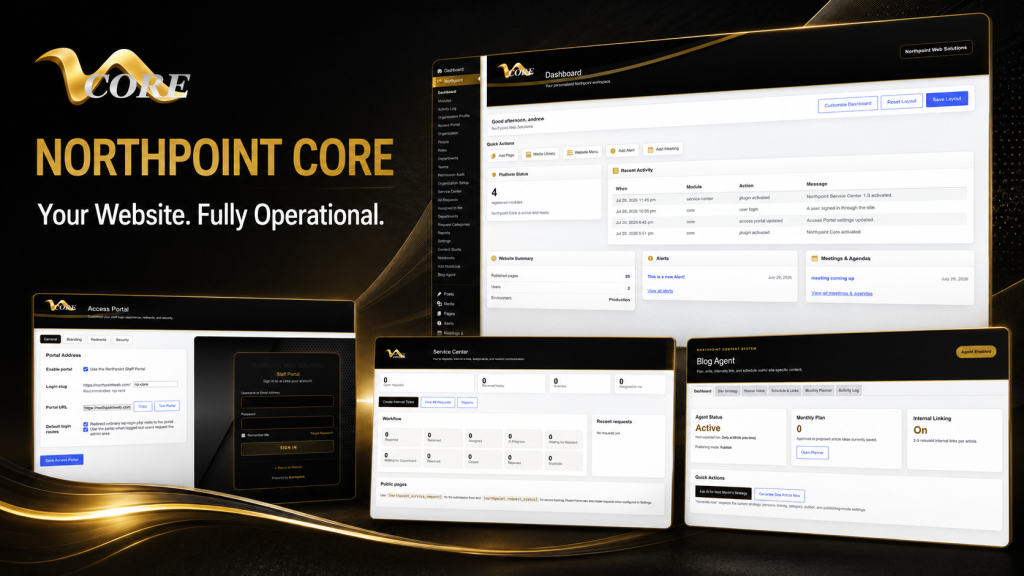
  • WordPress as a Business Operating System: 7 Real Workflows You Can Run Inside Your Website

    WordPress as a Business Operating System: 7 Real Workflows You Can Run Inside Your Website

    Hi — I’m Andrew North. If you remember the BBS days, you know what a small, well-tuned system can do for a community. I still think about that when I plan websites: a site shouldn’t just live on a server; it should do useful work for your organization. This article explains how to treat WordPress as a business operating system and lists seven real workflows you can run inside your website, with implementation notes and links to relevant Northpoint modules so you can evaluate what fits your organization.

    Why run workflows inside WordPress?

    Many organizations juggle multiple SaaS subscriptions—forms in one app, CRM in another, invoicing somewhere else. That’s fine until you need reliable data ownership, consistent permissions, or one place staff trust. Running workflows in WordPress keeps your data inside your site, reduces duplicate data entry, and can save staff time when modules are connected through a single administrative dashboard.

    How to read the workflow notes

    Each workflow below includes:

    • a brief description of the workflow
    • common implementation notes (what to think about during setup)
    • which Northpoint modules typically map to the workflow

    1) Public form → tracked service request → assignment → completion

    Use case: pothole reports, permit applications, facility maintenance requests.

    Implementation notes: build public forms with clear required fields and attachments. Capture requester contact info and location data. Map submissions to a ticket that can hold internal notes, assignments, due dates, and status history. Configure requester notifications and public updates where appropriate.

    Northpoint map: this is a natural fit for the Northpoint Core dashboard together with Northpoint Civic Forms and the Northpoint Service Center-style tools described in our documentation. In the systems we build, Service Center integrates form intake with assignment and reporting.

    2) Lead or customer form → CRM contact → task queue → follow-up

    Use case: sales leads, client intake, volunteer signups.

    Implementation notes: ensure form fields map to a CRM record (name, email, tags, source). Add automation rules that create a follow-up task or reminder for a specific team. Use roles and permissions so only authorized staff can view sensitive data.

    Northpoint map: implement as part of Northpoint Core with Organization tools for staff and roles, and the internal contact/tracking features available through our CRM-oriented modules. For content-driven follow-ups, pair with Northpoint Content Manager where appropriate.

    3) Quote request → job record → scheduling → field ticket → invoicing

    Use case: contractors, service providers, recreation programs that convert registrations into jobs and bills.

    Implementation notes: convert a submission into a job record that carries project details, attachments, assigned staff, and scheduled dates. Provide a printable or mobile-friendly field ticket for crews, then generate invoices tied to the job when work completes. Consider integrating payment links or reminders on invoices.

    Northpoint map: this end-to-end workflow is described in our contractor guide and pairs custom job-management logic with invoicing capabilities. See our article Turn Your Contractor Website into a Job Management Hub and the modular tools available through Northpoint Core and our custom integrations for invoicing and field tickets.

    4) Event or program registration → roster → waitlist → automated communications

    Use case: recreation classes, tournaments, community events.

    Implementation notes: collect required registration details, handle capacity limits by creating a waitlist, and generate roster PDFs or CSV exports for staff. Automate confirmation, reminders, and cancellations so staff aren’t manually emailing dozens of participants.

    Northpoint map: use Northpoint registration tools within Northpoint Core or our recreation-specific module Northpoint Recreation Manager when you need more scheduling, refund, or roster features.

    5) Purchase order / vendor invoice intake → AP tracking → approval workflow

    Use case: small municipalities, departments, or businesses that need a simple accounts-payable workflow without an external AP system.

    Implementation notes: create a submission form for incoming invoices or purchase orders, attach scanned documents, route to approvers with comment fields, and track payment status. Add notifications for overdue approvals or missing documentation.

    Northpoint map: this can be implemented inside Northpoint Core using custom forms and assignment rules. If you need a tailored approval chain, our team can build a small plugin that enforces the specific steps your organization requires—an example of how custom WordPress software can replace a separate workflow tool.

    6) HR onboarding checklist → personnel record → training reminders

    Use case: new-hire forms, background checks (metadata only), role-based access provisioning.

    Implementation notes: separate public onboarding forms from internal personnel records. Store only non-sensitive metadata in the site unless you have secured hosting and clear data policies. Use automated reminders for required training, certifications, and performance reviews.

    Northpoint map: implement with Organization tools inside Northpoint Core and permissioned internal pages powered by Northpoint Content Manager and Notebooks for internal documentation.

    7) Content planning → draft creation → scheduled publishing → SEO automation

    Use case: centralized blog strategy, public notices, and consistent content workflows that reduce duplicate effort across departments.

    Implementation notes: use a content calendar, assign writers, store draft guidance, and automate scheduled publishing. Pair content tasks with SEO recommendations and internal linking suggestions so posts are discoverable and consistent.

    Northpoint map: Northpoint Core paired with Northpoint Blog Agent and Northpoint Content Manager provides an end-to-end content workflow inside WordPress.

    Practical considerations before consolidating tools

    • Data ownership and privacy: decide which data stays in WordPress and which requires external processing (payments, sensitive records).
    • Staff training and permissions: give each role only the access they need. Northpoint Organization tools help structure roles and teams.
    • Integration scope: prioritize replacing the tools that cause the most duplication first—forms, tickets, and basic CRM are common starting points.
    • Hosting and backups: managed hosting is essential for business-critical sites. See our website management page for managed hosting and maintenance options.

    A historical note

    When I started building online systems in the late 1990s and early 2000s, many small organizations relied on disconnected spreadsheets and emailed PDFs. WordPress has matured since then; it can now host lightweight business systems that once required expensive desktop software or multiple cloud apps.

    Next steps

    If any of these workflows sound useful, start by listing your three highest-friction processes. We can help map them to specific WordPress modules, show which Northpoint tools apply, and scope a phased implementation that minimizes disruption.

    Talk with Northpoint Web Solutions about your website, software, or workflow problem. We can help determine whether an existing Northpoint Core module, a custom WordPress plugin, or a hybrid approach is the best fit.