
Structured WordPress Content Without the Confusion of Ordinary Posts and Pages
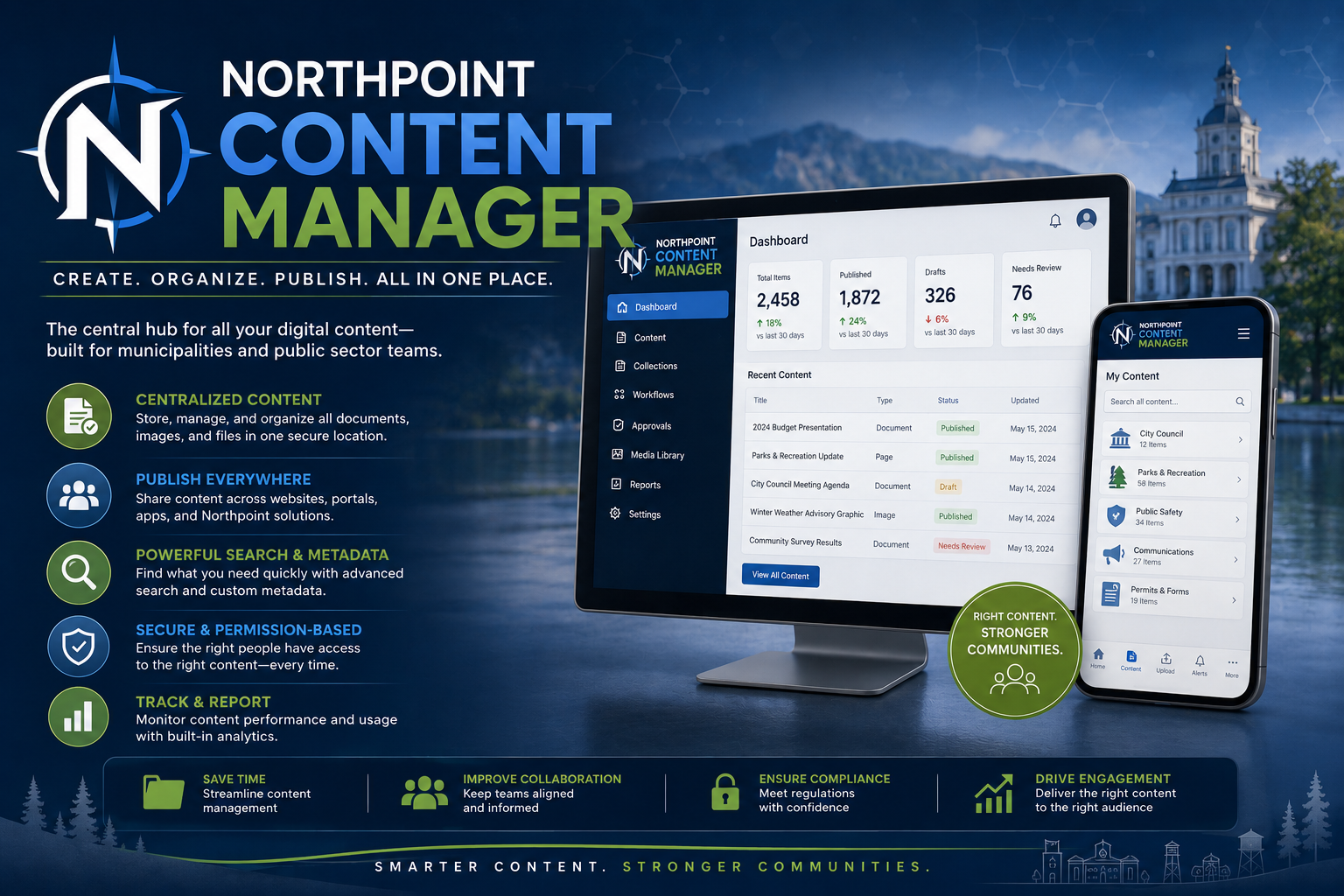
Northpoint Content Manager transforms WordPress into a more organized publishing system by creating dedicated sections for the information your organization manages repeatedly.
Instead of placing alerts, meetings, job openings, staff profiles, public notices, projects, and documents under one generic Posts menu, Northpoint Content Manager gives each type of information its own clearly labeled administrative area.
Staff can enter content through simple, purpose-built forms while the website automatically displays it in a consistent, professional format.
[Request a Demonstration]
Organize Content Around the Way Your Organization Works
Standard WordPress gives every website the same basic content options:
- Posts
- Pages
- Media
That works well for ordinary websites, but it becomes confusing when an organization manages many different types of information.
Northpoint Content Manager creates dedicated sections such as:
City Alerts
Public Notices
Meetings
Employment
Departments
Staff
Projects
Facilities
Forms
Frequently Asked Questions
Each section can have its own fields, categories, permissions, archive pages, search tools, and display templates.
This makes WordPress easier to understand and keeps important information from becoming mixed together.
What Is Structured Content?
Structured content stores information in a consistent format.
For example, instead of manually designing every job-opening page, staff complete fields such as:
- Position title
- Department
- Employment type
- Pay range
- Hours
- Closing date
- Job description
- Application link
The website then places that information into a professionally designed template.
Every job listing follows the same format, and staff do not need to rebuild the page layout each time.
Custom Content Sections
Northpoint Content Manager can create purpose-built sections for nearly any recurring information.
Common examples include:
Public Notices
- Notice title
- Notice type
- Publication date
- Hearing date
- Expiration date
- Department
- Full notice
- Supporting document
- Contact person
Meetings
- Board or committee
- Date and time
- Location
- Agenda
- Minutes
- Meeting packet
- Virtual meeting link
- Recording
- Cancellation status
Employment Opportunities
- Position title
- Department
- Full-time, part-time, or seasonal status
- Salary or wage
- Closing date
- Qualifications
- Job description
- Application instructions
Staff Directory
- Employee name
- Position
- Department
- Phone
- Photograph
- Biography
- Office location
Projects
- Project name
- Department
- Status
- Description
- Timeline
- Budget
- Contractor
- Documents
- Updates
- Photographs
Facilities
- Facility name
- Address
- Hours
- Amenities
- Rules
- Fees
- Reservation link
- Contact information
- Photographs
Easier for Staff to Use
A structured content screen can be much simpler than opening a full page builder.
For example, a staff member creating a public notice might see:
Notice Title

Notice Category

Publication Date

Expiration Date

Meeting or Hearing Date

Notice Text

Upload Supporting PDF

Contact Department

[Publish Notice]
The staff member enters the information.
Northpoint Content Manager handles the layout, archive placement, search filters, and public presentation.
Consistent Website Design
When staff create pages manually, layouts can gradually become inconsistent.
One page may use different headings, spacing, buttons, colors, or document links than another.
Structured templates help ensure that every item includes:
- Consistent heading sizes
- Standard spacing
- Proper labels
- Matching buttons
- Organization branding
- Accessible document links
- Mobile-responsive layouts
- Predictable navigation
This keeps the website looking professionally managed even when several employees publish content.
Protect the Page Layout
Staff should be able to update information without accidentally damaging the website design.
Northpoint Content Manager separates the content from the presentation.
Staff can update:
- Titles
- Descriptions
- Dates
- Documents
- Contact information
- Categories
- Statuses
- Photographs
without editing:
- Page-builder layouts
- Template code
- Global styling
- Theme files
- Columns and spacing
- Responsive settings
The design remains protected while the information remains easy to update.
Automatic Archive Pages
Each content type can include its own public archive.
Examples include:
/city-alerts/
/public-notices/
/meetings/
/employment/
/projects/
/staff/
/facilities/
Archive pages can automatically display the latest content without requiring staff to manually add new links.
When a new job opening is published, it appears on the employment page.
When a meeting is added, it appears in the meeting list.
When a public notice expires, it can move into an archive or disappear from the active-notice section.
Search and Filtering
Visitors can search or filter structured content by useful criteria.
Possible filters include:
- Year
- Department
- Category
- Board or committee
- Project status
- Notice type
- Meeting type
- Facility type
- Employment status
- Document type
For example, someone could filter meeting records by:
Board: City Council
Year: 2026
Document: Minutes
This is much easier than searching through an unorganized list of pages or PDFs.
Automatic Expiration
Time-sensitive content can include an expiration date.
This is useful for:
- Job openings
- Public notices
- Temporary alerts
- Event announcements
- Recreation registrations
- Seasonal hours
- Bid opportunities
- Meeting notices
When the expiration time is reached, the item can:
- Disappear from active listings
- Move into an archive
- Change to an expired status
- Stop appearing on the homepage
- Remain available to staff internally
This reduces the likelihood that outdated information remains prominently displayed.
Reusable Display Modules
Structured content can appear in several parts of the website without being entered more than once.
A single public notice might appear on:
- The public-notices archive
- The homepage
- The related department page
- A meeting page
- A sidebar widget
- A featured notice block
A project update might appear on:
- The project page
- The public works page
- The homepage
- A community updates section
The system reuses the same record instead of requiring staff to copy and paste the information into several places.
Shortcodes and Website Blocks
Northpoint Content Manager can provide shortcodes or visual blocks for displaying content.
Examples might include:
[northpoint_notices limit="5"][northpoint_jobs status=”open”]
[northpoint_meetings board=”city-council”]
[northpoint_staff department=”administration”]
[northpoint_projects status=”active”]
These modules can be placed inside:
- PageLayer
- Gutenberg
- Widgets
- Sidebars
- Footers
- Landing pages
- Department pages
The exact shortcode names and settings can be customized for each implementation.
Homepage Content Without Page-Builder Editing
The homepage can automatically display selected structured content.
Common homepage sections include:
- Active alerts
- Latest public notices
- Upcoming meetings
- Current job openings
- Featured projects
- Community news
- Recreation announcements
- Popular facilities
Staff publish the information through its dedicated section, and the homepage updates automatically.
They do not need to open the homepage layout every time something changes.
Dedicated Fields for Better Information
Each content type can have fields designed specifically for that information.
A meeting may include a date, location, agenda, and minutes.
A staff profile may include a title, department, phone number, and email address.
A park may include hours, amenities, fees, and a reservation link.
These fields can then be used to:
- Create consistent layouts
- Build search filters
- Sort information
- Display related content
- Generate directories
- Improve website navigation
- Create automated archive pages
Related Content
Northpoint Content Manager can connect information across the website.
For example:
- A staff member can be connected to a department.
- A meeting can be connected to a board.
- An agenda can be connected to a meeting.
- A project can be connected to a department.
- A form can be connected to a service.
- A notice can be connected to a hearing.
- A facility can be connected to a reservation form.
These relationships help visitors move naturally through the website.
A department page could automatically show:
- Department staff
- Related forms
- Current notices
- Active projects
- Frequently asked questions
- Contact information
Custom Categories and Taxonomies
Content can be organized through custom categories designed around the organization’s terminology.
Examples include:
Alert Categories
- Emergency
- Water
- Roads
- Recreation
- General
Public Notice Types
- Public Hearing
- Election Notice
- Bid Opportunity
- Ordinance Notice
- Budget Notice
Project Statuses
- Proposed
- Planning
- In Progress
- On Hold
- Completed
Facility Types
- Park
- Pool
- Trail
- Community Center
- Sports Field
These custom classifications make website information easier to organize and filter.
Role-Based Permissions
Different staff members can be given access to different content sections.
For example:
- Recreation staff can manage parks, pool information, and programs.
- City recorders can manage meetings, agendas, minutes, and public notices.
- Public works staff can manage projects, road notices, and utility updates.
- Human resources staff can manage employment listings.
- Administrators can manage everything.
Staff members do not need access to unrelated content or technical WordPress settings.
Approval and Review
Structured content can support editorial review before publication.
A possible workflow might be:
Draft
↓
Department Review
↓
Administrative Approval
↓
Published
This can be helpful for:
- Legal notices
- Meeting minutes
- Emergency announcements
- Job listings
- Policy documents
- Public project updates
The system can be configured around the organization’s approval process.
Custom Templates
Each content type can have its own public template.
A public-notice page might emphasize:
- Notice title
- Important dates
- Full legal text
- Supporting documents
- Contact information
A project page might emphasize:
- Project status
- Description
- Timeline
- Budget
- Updates
- Photographs
A staff directory entry might emphasize:
- Name
- Position
- Department
- Contact details
Templates can match the organization’s branding while remaining consistent throughout the site.
Mobile-Friendly Information
Structured content is automatically presented through responsive templates.
This helps ensure that:
- Tables do not overflow the screen
- Documents are easy to open
- Contact links are tap-friendly
- Dates and locations are readable
- Buttons remain usable
- Content follows a logical order
- Staff do not have to design separate mobile layouts
This is especially important for residents accessing notices, meetings, or emergency information from a phone.
Accessibility-Conscious Structure
Consistent templates can support better accessibility practices.
Northpoint Content Manager can help standardize:
- Heading levels
- Link descriptions
- Image alternative text
- Form labels
- Document titles
- Date formatting
- Keyboard navigation
- Content order
- Button labels
Structured entry fields can also remind staff to provide important accessibility information before publishing.
Document Attachments
Content records can include related documents.
Examples include:
- Meeting agendas
- Minutes
- Plans
- Reports
- Applications
- Maps
- Bid documents
- Ordinances
- Resolutions
- Supporting PDFs
Documents can be labeled clearly and organized with the content they support.
For instance, a meeting page might automatically group:
Agenda
Meeting Packet
Approved Minutes
Audio Recording
Supporting Documents
Content Import and Migration
Existing information can often be reorganized into structured content.
Northpoint can assist with migrating:
- Old WordPress posts
- Existing pages
- PDFs
- Staff directories
- Meeting archives
- Job listings
- Public notices
- Facility information
- Project pages
Migration requirements depend on the condition and consistency of the existing content.
Northpoint Civic CMS Integration
Northpoint Content Manager can serve as the content engine behind Northpoint Civic CMS.
The Content Manager creates and organizes the structured records.
The Civic CMS presents those tools through a simplified municipal dashboard with staff roles, workflows, and branding.
Together, they create an easier administrative experience without sacrificing WordPress flexibility.
Northpoint Notify Integration
Alert content can connect directly with Northpoint Notify.
A City Alert record may include:
- Website banner
- Complete alert page
- Email message
- SMS message
- Alert category
- Expiration time
- Subscriber audience
- Delivery history
This allows alert content and notification delivery to work together.
Northpoint AI Assistant Integration
Structured content gives an AI assistant clearer and more dependable information to reference.
Instead of searching through inconsistent page layouts, the assistant can work with organized records such as:
- Departments
- Staff
- Forms
- Meetings
- Notices
- Alerts
- Facilities
- Frequently asked questions
This can improve the assistant’s ability to direct visitors to the right information.
Northpoint Civic Forms Integration
Forms can be connected directly to structured content.
Examples include:
- A park record links to its reservation form.
- A job opening links to its employment application.
- A department links to its service-request form.
- A permit type links to its application.
- A facility links to its rental agreement.
This helps keep forms connected to the information and services they support.
More Than Municipal Content
Northpoint Content Manager can also be used by businesses and organizations.
Possible uses include:
- Products
- Services
- Projects
- Team members
- Locations
- Case studies
- Properties
- Equipment
- Courses
- Testimonials
- Events
- Resources
- Frequently asked questions
- Membership directories
Any recurring information that follows a predictable structure can benefit from a custom content type.
Business Examples
Construction Company
Dedicated sections for:
- Services
- Projects
- Service areas
- Equipment
- Team members
- Testimonials
Medical Practice
Dedicated sections for:
- Providers
- Services
- Locations
- Insurance information
- Patient resources
- Frequently asked questions
Tourism Website
Dedicated sections for:
- Attractions
- Trails
- Events
- Restaurants
- Lodging
- Recreation areas
Church or Nonprofit
Dedicated sections for:
- Ministries
- Events
- Staff
- Sermons
- Resources
- Volunteer opportunities
Why Not Just Use Regular Pages?
Regular pages are useful for unique, permanent information such as About, Contact, or Privacy Policy pages.
They become less efficient when many pages share the same type of information.
Structured content offers several advantages:
- Faster data entry
- Consistent design
- Better filtering
- Automatic archives
- Easier staff training
- Reusable information
- Safer editing
- Improved organization
- Better future integrations
The goal is not to eliminate pages. It is to use the right content tool for each kind of information.
Built Around Your Needs
Northpoint Content Manager is configured around the organization rather than forcing every organization into the same structure.
The process may include:
- Reviewing existing website content
- Identifying repeated information
- Defining the required fields
- Creating the content sections
- Designing public templates
- Configuring staff permissions
- Building archive and search pages
- Migrating selected content
- Training staff
- Refining the workflow over time
Benefits of Northpoint Content Manager
Clearer Administration
Staff see dedicated sections instead of a mixed list of posts.
Consistent Presentation
Every item follows an approved template.
Safer Updates
Staff edit information without editing page layouts.
Automatic Website Updates
Archive pages and homepage modules update when content is published.
Better Search
Visitors can filter information by meaningful categories.
Easier Expansion
New records can be added without creating new layouts.
Better Integration
Structured information can connect with forms, alerts, dashboards, and AI assistants.
Northpoint Content Manager
Give Every Type of Information Its Proper Place
Northpoint Content Manager organizes WordPress around the information your organization actually manages.
It replaces confusing collections of posts and manually designed pages with clearly labeled content sections, guided entry screens, consistent templates, and searchable archives.
Staff enter the information.
Northpoint Content Manager keeps it organized.